Before deployment in production zones, system tests and
staging tests are run.
Tests are run in a dedicated and downsized environment.
These tests are optional, see details in the sections below.
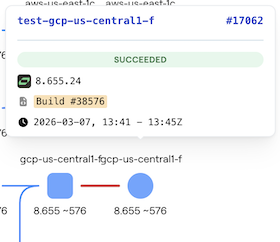
Status and logs of ongoing tests can be found in the Deployment view in the
Vespa Cloud Console:
When a system test is run, the application is deployed in
the test environment.
The system test suite is then run against the endpoints of the test deployment.
The test deployment is empty when the test execution begins.
The application package and Vespa platform version is the same as that to be deployed to production.
A test suite includes at least one
system test.
An application can be deployed to a production zone without system tests -
this step will then only test that the application starts successfully.
See production deployment for an example without tests.
If the production zones span multiple cloud providers (e.g., both AWS and GCP),
system tests are run separately for each cloud provider,
using test nodes from that provider.
This ensures the application starts and works correctly on each provider's infrastructure
before production deployment.
A staging test verifies the transition of a deployment of a new application package -
i.e., from application package Appold to Appnew.
A test suite includes at least one
staging setup, and
staging test.
All production zone deployments are polled for the current versions.
As there can be multiple versions already being deployed
(i.e. multiple Appold),
there can be a series of staging test runs.
The staging setup test code is run, typically making the cluster reasonably
similar to a production cluster.
The test deployment is then upgraded to application revision Appnew.
Finally, the staging test code is run,
to verify the deployment works as expected after the upgrade.
An application can be deployed to a production zone without staging tests -
this step will then only test that the application starts successfully before and after the change.
See production deployment for an example without tests.
Like system tests, staging tests are run separately for each cloud provider
when the production zones span multiple providers.
To deploy without testing, remove the test files from the application package.
Tests are always run, regardless of deployment.xml.
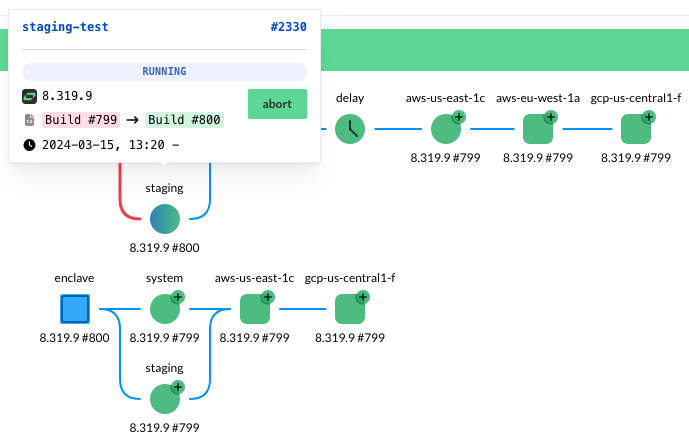
To temporarily deploy without testing, run deploy and hit the "Abort" button
(see illustration above, hover over the test step in the Console) -
this skips the test step and makes the orchestration progress to the next step.
Running tests only
To run a system test, without deploying to any nodes after,
add a new test instance.
In deployment.xml, add the instance without dev orprod elements, like:
Note that this will leave an empty instance in the console,
as the deployment is for testing only,
so no resources deployed to after test.
Make sure to run vespa prod deploy to invoke the pipeline for testing,
and use a separate application for this test.
Deployment orchestration
The deployment orchestration is flexible.
One can configure dependencies between deployments to production zones,
production verification tests, and configured delays;
by ordering these in parallel and serial blocks of steps:
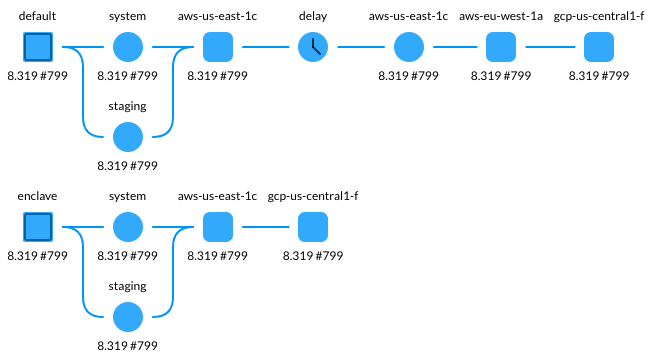
Pipeline graph
The deployment pipeline is visualized as a graph in the
Vespa Cloud Console.
Each node represents a step in the pipeline,
and edges show dependencies between steps.
Hover over any node to see details and available actions.
Node shapes
Shape
Step type
Description
Instance
The application instance. Hover to see target versions, cancel/deploy/pin controls, and block windows.
Test
System test, staging test, or production test.
Hover to see run status, versions, and abort/restart actions.
Production deployment
A deployment to a production zone.
Hover to see run status, versions, and abort/restart/defer actions.
Delay
A configured delay between steps.
Visual indicators
Indicator
Meaning
Description
Completed
The step has completed successfully on the current version. The color corresponds to the deployed version.
Running
A deployment or test is currently in progress. Shown as an animated gradient between the source and target version colors.
Failed
The last run of this step failed.
Unknown / initial
No version has been deployed to this step yet.
Pending change
A newer version is queued and waiting to be deployed to this step.
Paused / deferred
Deployments to this step are temporarily postponed.
Application blocked
Application changes are blocked by a block window. Shown as vertical bars.
Upgrade or maintenance blocked
A Vespa platform upgrade, or maintenance (such as OS upgrades and node backup or restore), is blocked by a block window. Shown as horizontal bars.
Maintenance frozen
Maintenance is held in this zone by a maintenance freeze. On an instance, at least one of its zones is frozen. Shown as a corner snowflake.
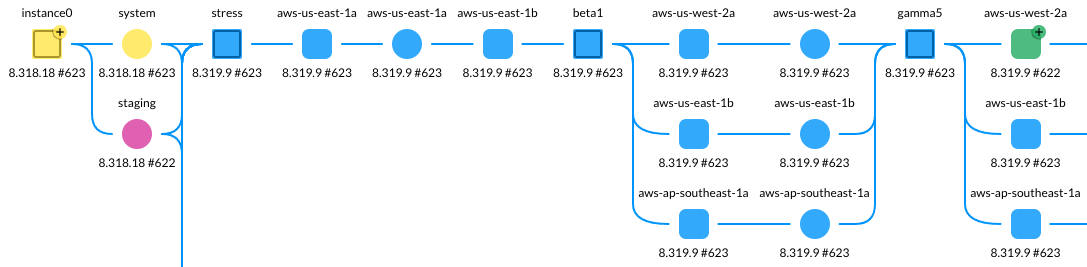
Each version deployed through the pipeline is assigned a distinct color.
This makes it easy to see at a glance which zones are on the same version
and where a rollout is in progress.
A thumbtack icon on a node indicates that the version is
pinned.
On a higher level, instances can also depend on each other in the same way.
This makes it easy to configure a deployment process
which gradually rolls out changes to increasingly larger subsets of production nodes,
as confidence grows with successful production verification tests.
Refer to deployment.xml for details.
Deployments run sequentially by default, but can be configured to
run in parallel. Inside each zone, Vespa Cloud
orchestrates the deployment, such that the change is applied without
disruption to read or write traffic against the application. A production
deployment in a zone is complete when the new configuration is active on all nodes.
Most changes are instant, making this a quick process.
If node restarts are needed, e.g., during platform upgrades,
these will happen automatically and safely as part of the deployment.
When this is necessary, deployments will take longer to complete.
System and staging tests, if present,
must always be successfully run before the application package is deployed to production zones.
Version progression
The deployment pipeline deploys one revision at a time through the production zones.
When a revision is being deployed, it must complete deployment to all declared production zones
before the next revision begins its production rollout.
System and staging tests for newer revisions may run in parallel,
but production deployment is serialized.
For example, if build 90 is being deployed to the second of two production zones,
build 91 will not start deploying to the first zone until build 90 has completed in all zones —
even if build 91 has already passed system and staging tests.
Superseding a version
To override the currently deploying revision and force a newer build through the pipeline,
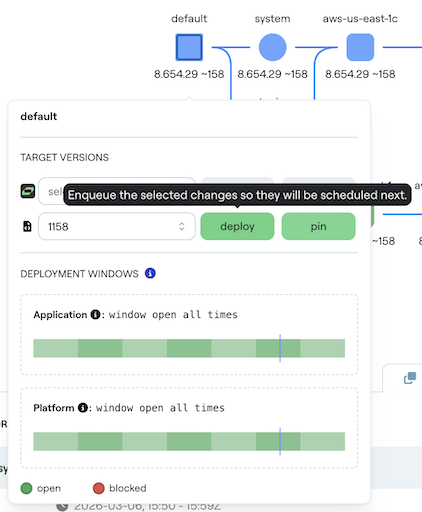
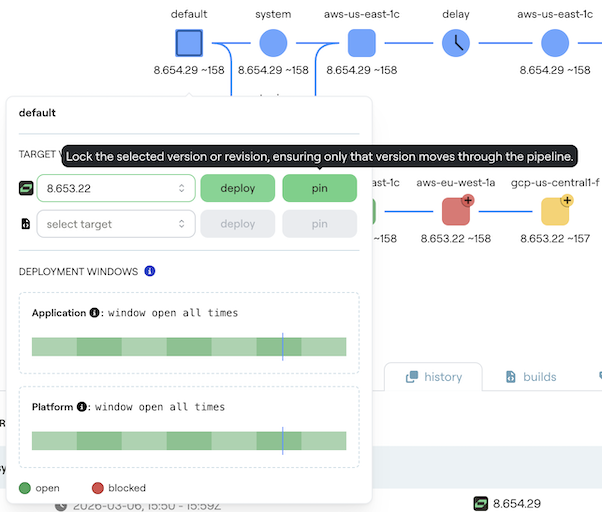
hover over the instance node in the pipeline graph and use the TARGET VERSIONS controls.
Select the desired build number from the revision dropdown and click deploy.
This updates the instance's deployment target.
Any running production job for the old revision will be aborted,
and the pipeline will start deploying the new revision from the first production zone.
To cancel the currently deploying revision without selecting a new one,
click cancel.
This lets the pipeline pick the next revision automatically.
Pinning versions
Pinning locks the pipeline to a specific platform version or application revision,
preventing automatic upgrades.
This is useful for forcing a downgrade, holding a known-good revision during an incident,
or preventing the system from picking up a new platform version.
To pin a version, hover over the instance node in the pipeline graph.
Under TARGET VERSIONS, select the desired version from the dropdown
and click pin.
A reason is required — enter a description and click submit pin.
Platform and revision can be pinned independently.
While pinned, no newer platform versions or revisions will be deployed for the pinned dimension.
The dropdown and deploy button are disabled to prevent accidental changes.
To unpin, hover over the instance node and click unpin,
which allows newer versions to move through the pipeline again.
For example, to roll back to a previous revision:
Select the older build number from the revision dropdown.
Click pin and provide a reason (e.g., "rollback due to regression in build 91").
The pipeline will deploy the pinned build to all production zones.
Once the issue is resolved, click unpin to resume normal deployments.
Cooldown after failures
When a production deployment fails repeatedly, an exponential cooldown is applied before
the job is automatically retried. The cooldown period grows with the time between the first
failure and the last completed run. This prevents the system from continuously retrying
a failing deployment.
The cooldown applies only when the target versions match those of the failing runs.
If the target changes (e.g., a new revision is set as the deployment target),
the cooldown resets and the new revision can be deployed immediately.
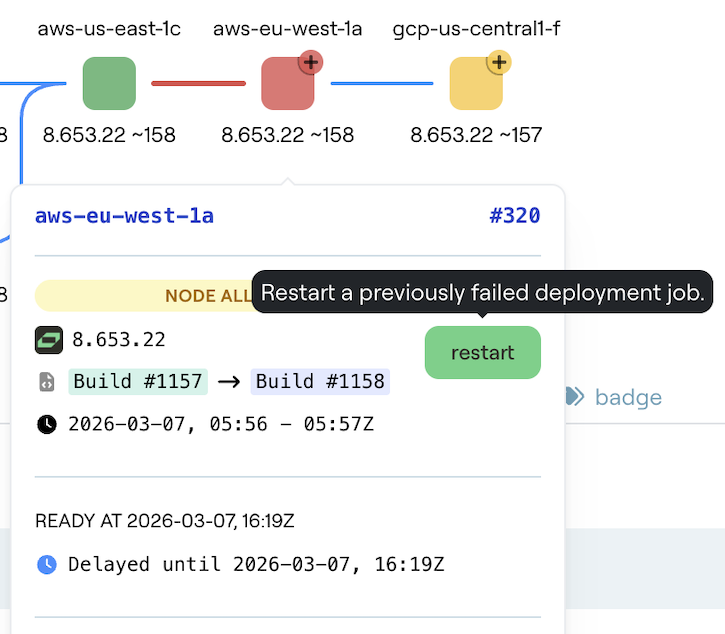
To manually re-trigger a failed deployment and bypass the cooldown,
hover over the failed zone node in the pipeline graph and click restart.
Pausing deployments to a zone
To temporarily hold off deployments to a specific production zone,
hover over the zone node in the pipeline graph and click defer.
This postpones deployments for 72 hours.
Click enable to resume scheduling before the deferral period expires.
Source code repository integration
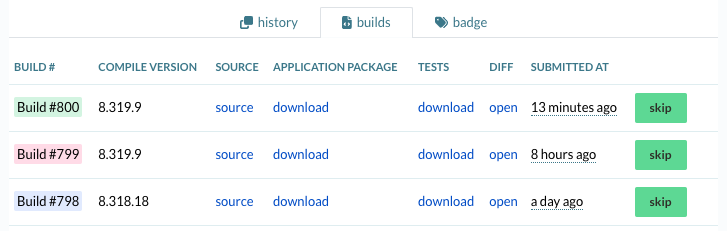
Each new submission is assigned an increasing build number,
which can be used to track the roll-out of the new package to the instances and their zones.
With the submission, add a source code repository reference for easy integration -
this makes it easy to track changes:
Add the source diff link to the pull request -
see example
GitHub Action:
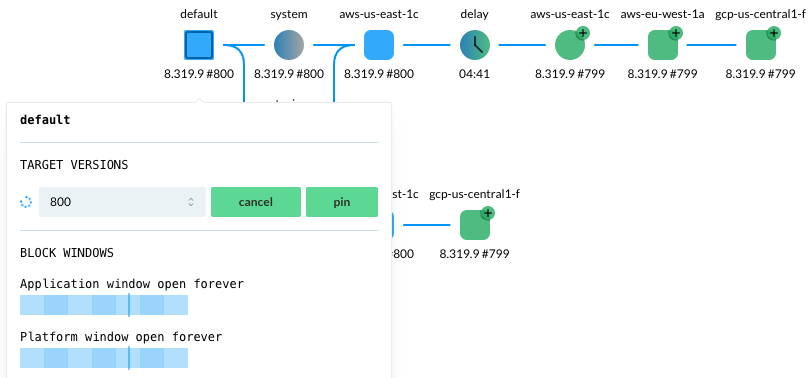
Use block-windows to block deployments during certain windows throughout the week,
e.g., avoid rolling out changes during peak hours / during vacations.
Hover over the instance (here "default") to find block status -
see block-change:
Maintenance freeze
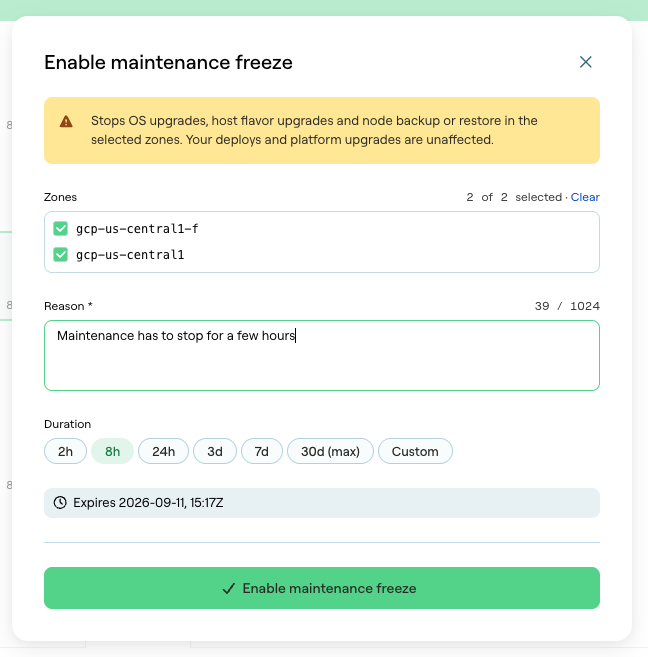
A maintenance freeze stops OS upgrades, host flavor upgrades, and node backup or restore
in selected production zones.
Deployments and Vespa platform upgrades are unaffected.
Where a block-window sets when maintenance may run each week,
a freeze holds maintenance regardless of the windows -
use it as a brake during an incident.
Select an instance in the pipeline graph,
then use Freeze maintenance in the node details.
Select the zones, give a reason, and set a duration of at most 30 days.
The reason is required, and is shown with the freeze.
The freeze takes effect immediately and expires on its own.
To lift a freeze before it expires, unselect its zones and submit.
Frozen zones are marked with a snowflake in the pipeline graph -
see visual indicators.
Setting and lifting a freeze requires the developer role.
Validation overrides
Some configuration changes are potentially destructive / change the application behavior -
examples are removing fields and changing linguistic processing.
These changes are disallowed by default, the deploy-command will fail.
To override and force a deploy,
use a validation override:
Production tests are optional and configured in deployment.xml.
A production test is placed after a deployment zone in the pipeline and acts as a gate:
if it fails, the rollout stops and subsequent zones will not receive the new version.
This is useful in multi-zone deployments where the first zone serves as a canary.
Production tests run against the endpoints of the preceding production region in the pipeline.
Production tests are written as YAML or JSON files. See the
production test reference for the
file format and the list of available metric presets.
Deploying Components
Vespa is backwards compatible within major versions,
and major versions rarely change.
This means that Components
compiled against an older version of Vespa APIs
can always be run on the same major version.
However, if the application package is compiled against a newer API version,
and then deployed to an older runtime version in production,
it might fail.
See vespa:compileVersion
for how to solve this.
Automating with GitHub Actions
Auto-deploy production applications using GitHub Actions - examples:
deploy-vector-search.yaml
deploys an application to a production environment - a good example to start from!
deploy.yaml
deploys an application with basic HTTP tests.
Error: refusing to overwrite /Users/me/.vespa/mytenant.api-key.pem
Hint: Use -f to overwrite it

This is your public key:
-----BEGIN PUBLIC KEY-----
ABCDEwYHKoZIzj0CAQYIKoZIzj0DAQcDQgAEB2UFsh8ZjoWNtkrDhyuMyaZQe1ze
qLB9qquTKUDQTuM2LOr2dawUs02nfSc3UTfC08Lgr/dvnTnHpc0/fY+3Aw==
-----END PUBLIC KEY-----

Its fingerprint is:
12:34:56:78:65:30:77:90:30:ab:83:ee:a9:67:68:2c

To use this key in Vespa Cloud click 'Add custom key' at
https://console.vespa-cloud.com/tenant/mytenant/account/keys
and paste the entire public key including the BEGIN and END lines.
This means, if there is a key, it is not overwritten, it is safe to run.
Make sure to add the deploy-key to the tenant using the Vespa Cloud Console.
After the deploy-key is added, everything is ready for deployment.
You can upload or create new Application keys in the console, and store
them as a secret in the repository like the GitHub actions example above.
Some services like Travis CI do not accept
multi-line values for Environment Variables in Settings.
A workaround is to use the output of
$ openssl base64 -A -a < mykey.pem && echo
in a variable, say VESPA_MYAPP_API_KEY, in Travis Settings.
VESPA_MYAPP_API_KEY is exported in the Travis environment, example output:
Setting environment variables from repository settings
$ export VESPA_MYAPP_API_KEY=[secure]
Then, before deploying to Vespa Cloud, regenerate the key value:
$ MY_API_KEY=`echo $VESPA_MYAPP_API_KEY | openssl base64 -A -a -d`
and use ${MY_API_KEY} in the deploy command.
Vespa Cloud upgrades
Vespa upgrades follows the same pattern as for new application revisions in CD tests,
and can be tracked via its version number in the Vespa Cloud Console.
System tests are run the same way as for deploying a new application package.
A staging test verifies the upgrade from application package
Appold to Appnew,
and from Vespa platform version Vold to Vnew.
The staging test then consists of the following steps:
All production zone deployments are polled for the current
Vold / Appold versions.
As there can be multiple versions already being deployed
(i.e. multiple Vold / Appold),
there can be a series of staging test runs.
The application at revision Appold is deployed on platform version Vold,
to a zone in the staging environment.
The staging setup test code is run,
typically making the cluster reasonably
similar to a production cluster.
The test deployment is then upgraded to application revision Appnew
and platform version Vnew.
Finally, the staging test test code is run,
to verify the deployment works as expected after the upgrade.
Note that one or both of the application revision and platform may be upgraded during the staging test,
depending on what upgrade scenario the test is run to verify.
Concurrent platform and revision changes
When both a platform upgrade and a revision change are pending,
the rollout setting in
deployment.xml
controls how they interact in production zones:
simultaneous (default): Revision changes deploy independently of platform upgrades.
A revision can catch up to and pass an ongoing platform upgrade.
leading: When a revision catches up to a platform upgrade,
the two changes fuse and roll out together.
separate: The revision waits for the platform upgrade to complete,
unless the upgrade is failing.
With the default simultaneous strategy,
a new revision will not be held back by an ongoing platform upgrade.
A challenge with continuous deployment can be integration testing across multiple services:
Another service depends on this Vespa application for its own integration testing.
Use a separate application instance for such integration testing.
Set up a deployment badge - available from the console's deployment view - example: