-
Applications and components
- Developer guide
- IDE support
- Deployment
- .vespaignore files
- Containers
- Components
- Searchers
- Document processors
- Request handlers
- Result renderers
- Dependency injection
- Configuring components
- Chaining
- Inspecting structured data in a Searcher
- Developing web services
- Unit testing
- System testing
- The config system
- Request-response processing
- Bundles
- Using ZooKeeper
- Http servers and filters
- Using pluggable frameworks
- Java config API
-
Querying
- The query api
- The YQL query language
- Grouping and aggregation
- Query profiles
- An intro to vector search
- Nearest neighbor search
- Approximate nearest neighbor search
- Nearest neighbor search guide
- Text matching
- Searching multivalue fields
- Geo search
- Document summaries
- Result diversity
- Federation
- Page templates
- Filter intersections
-
Ranking and inference
- Ranking introduction
- Ranking expressions and features
- Multivalue query operators
- Tensor user guide
- Tensor examples
- Phased ranking
- Using TensorFlow models
- Using ONNX models
- Using XGBoost models
- Using LightGBM models
- Wand: Accelerated OR search
- The BM25 rank feature
- The nativeRank rank feature
- Cross-encoder transformer ranking
- Searcher re-ranking
- Significance model
- Stateless model evaluation
-
Linguistics and text processing
-
Content and elasticity
-
Performance
- Performance overview
- Practical performance guide
- Serving sizing guide
- Feed sizing guide
- Node resources
-
Instance types
- Topology and resizing
- Streaming search
- Benchmarking
- Benchmarking using Vespa Cloud
- Memory visualizer
- Profiling
- Container tuning
- Rate-limiting queries
- Graceful degradation
- Caches
- HTTP performance testing
- HTTP/2
- Feature tuning
- Valgrind
-
Operations
- Quota
- Environments
- Zones
- Availability Zones
- Production deployment
- Deployment variants
- Automated deployments
- Autoscaling
-
Enclave: Bring your own cloud
- Reindexing
- Reindexing on Vespa Cloud
- Data management and backup
- Cloning applications and data
- Monitoring
- Metrics
- Telemetry export
- Notifications
- Support
- Login Help
- Single Sign-On (SSO) Setup
- Deployment patterns
- Private endpoints
- Endpoint routing
- Access logging
-
Artifact archive
- Deleting applications
-
Self-managed
- Admin procedures
- Multinode Systems
- Files, Processes, Ports, Environment
- Node Setup
- Build and install
- Monitoring
- Content node recovery
- Configuration Servers
- Live Vespa upgrade procedure
- Config Sentinel
- Config Proxy
- Docker Containers
- Docker Containers GPU setup
- CPU Support
- Service Location Broker
- Change from attribute to index procedure
- Container
- Sizing examples
- Vespa Support CLI
-
Kubernetes
- Introduction
-
Reference
-
Modules
-
Reference
-
Applications and components
-
Schemas and documents
-
Reading and writing
-
Operations
- Health checks
- Log files
- Tools
-
Self-managed
-
Security
-
Release notes
Deleting an application
To delete an application, use the console:
- Under Applications, select the application and open Application Overview.
- Expand the Danger Zone section at the bottom of the page.
- Click Delete application.
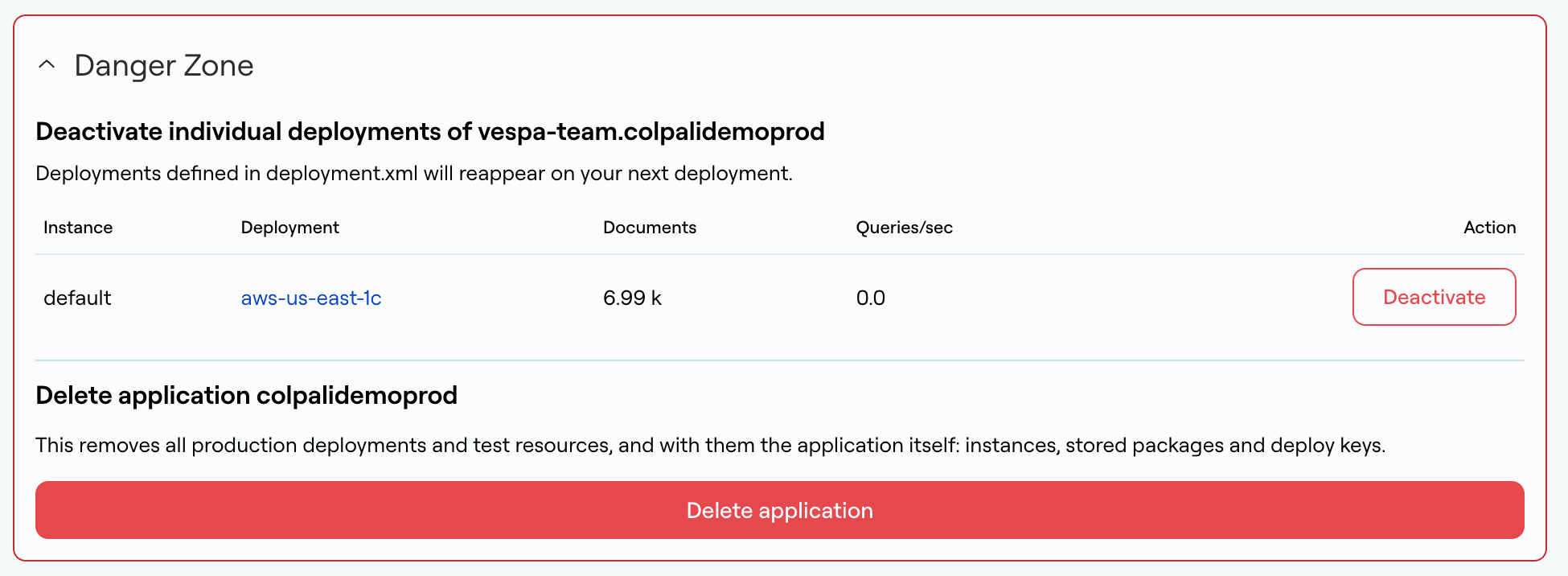
This removes all production deployments and test resources, and with them the application itself: its instances, stored application packages and deploy keys. Remove the CI job that builds and deploys application packages, if any, so it does not deploy the application again.
To take a single production deployment offline instead, click Deactivate next to it in the
Danger Zone. A deactivated deployment that is still listed in deployment.xml reappears on the
next deployment. To remove it permanently, follow the steps in the next section.
Deleting an instance / region
To remove an instance or a deployment to a region from an application:
-
Remove the
regionfromprod, or theinstancefromdeploymentin deployment.xml:<deployment version="1.0"> <prod> <region>aws-us-east-1c</region> <!-- Removing the deployment in the region 'aws-eu-west-1a' --> <!--region>aws-eu-west-1a</region--> </prod> </deployment> -
Add or modify validation-overrides.xml, allowing Vespa Cloud to remove production instances:
<validation-overrides> <allow until="2021-03-01" comment="Remove region/instance ...">deployment-removal</allow> <!-- If the region was part of a global endpoint/instance had a global endpoint: --> <allow until="2021-03-01" comment="Remove region/instance ...">global-endpoint-change</allow> </validation-overrides> -
Build and deploy the application package.