-
Applications and components
- Developer guide
- IDE support
- Deployment
- .vespaignore files
- Containers
- Components
- Searchers
- Document processors
- Request handlers
- Result renderers
- Dependency injection
- Configuring components
- Chaining
- Inspecting structured data in a Searcher
- Developing web services
- Unit testing
- System testing
- The config system
- Request-response processing
- Bundles
- Using ZooKeeper
- Http servers and filters
- Using pluggable frameworks
- Java config API
-
Querying
- The query api
- The YQL query language
- Grouping and aggregation
- Query profiles
- An intro to vector search
- Nearest neighbor search
- Approximate nearest neighbor search
- Nearest neighbor search guide
- Text matching
- Searching multivalue fields
- Geo search
- Document summaries
- Result diversity
- Federation
- Page templates
- Filter intersections
-
Ranking and inference
- Ranking introduction
- Ranking expressions and features
- Multivalue query operators
- Tensor user guide
- Tensor examples
- Phased ranking
- Using TensorFlow models
- Using ONNX models
- Using XGBoost models
- Using LightGBM models
- Wand: Accelerated OR search
- The BM25 rank feature
- The nativeRank rank feature
- Cross-encoder transformer ranking
- Searcher re-ranking
- Significance model
- Stateless model evaluation
-
Linguistics and text processing
-
Content and elasticity
-
Performance
- Performance overview
- Practical performance guide
- Serving sizing guide
- Feed sizing guide
- Node resources
-
Instance types
- Topology and resizing
- Streaming search
- Benchmarking
- Benchmarking using Vespa Cloud
- Memory visualizer
- Profiling
- Container tuning
- Rate-limiting queries
- Graceful degradation
- Caches
- HTTP performance testing
- HTTP/2
- Feature tuning
- Valgrind
-
Operations
- Quota
- Environments
- Zones
- Availability Zones
- Production deployment
- Deployment variants
- Automated deployments
- Autoscaling
-
Enclave: Bring your own cloud
- Reindexing
- Reindexing on Vespa Cloud
- Data management and backup
- Cloning applications and data
- Monitoring
- Metrics
- Telemetry export
- Notifications
- Support
- Login Help
- Single Sign-On (SSO) Setup
- Deployment patterns
- Private endpoints
- Endpoint routing
- Access logging
-
Artifact archive
- Deleting applications
-
Self-managed
- Admin procedures
- Multinode Systems
- Files, Processes, Ports, Environment
- Node Setup
- Build and install
- Monitoring
- Content node recovery
- Configuration Servers
- Live Vespa upgrade procedure
- Config Sentinel
- Config Proxy
- Docker Containers
- Docker Containers GPU setup
- CPU Support
- Service Location Broker
- Change from attribute to index procedure
- Container
- Sizing examples
- Vespa Support CLI
-
Kubernetes
- Introduction
-
Reference
-
Modules
-
Reference
-
Applications and components
-
Schemas and documents
-
Reading and writing
-
Operations
- Health checks
- Log files
- Tools
-
Self-managed
-
Security
-
Release notes
Vespa Cloud supports secure storage and management of secrets for use in your application. A secret is a text-based value such as an API key, a token or other private configuration value required by your application.
By organizing secrets into vaults, setting application-specific access controls, and integrating secrets cleanly into your application code, Vespa Cloud ensures that sensitive data like API keys and tokens are kept safe and are easily updatable.
This guide takes you through secret management for your tenant and how to use them in your application.
Use the Retrieval Augmented Generation (RAG) in Vespa sample application for a practical example getting started using the Secret Store. This example uses the Secret Store to store an OpenAI API key.
Secret management
In the Vespa Cloud console, the "Account" section of your tenant contains a "Secret store" tab. This is where you configure all secrets for your tenant.
Vaults
Secrets are organized into vaults, where each vault can contain a number of secrets. The vault also contains rules for which applications can use the secrets in the vault. You can have any number of vaults.
To create a new vault, click the "+ New vault" button. The vault name must
match the rule [.a-zA-Z0-9_-] meaning only alphanumeric characters and .,
_, and - are allowed. Spaces are not allowed.
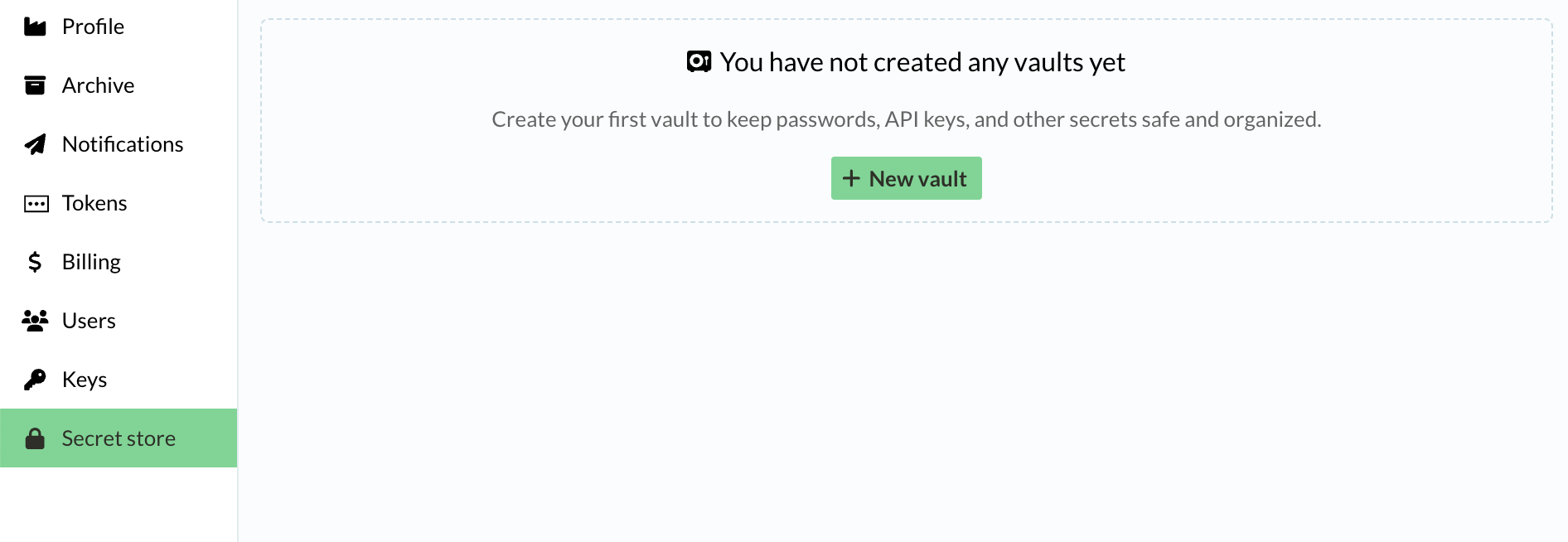
After creation, you can delete the entire vault by clicking the red trash bin button on the top right.
Access scopes
Each vault has an "Access scopes" section that lists the access rules defined for the vault. Every rule has a scope - either application or infrastructure. Click "Edit access" to manage them; the editor has an "Application scope" tab and an "Infrastructure scope" tab.
Application scope
Application scope grants your applications read access to the secrets in the vault, for use within your application code. In the "Application scope" tab, grant each application access in the prod (including test and staging) and/or dev environment.
Note that the application must have been created before you can grant it access. Use the steps at Retrieval Augmented Generation (RAG) in Vespa to create an application and grant access.
Infrastructure scope
Infrastructure scope grants Vespa Cloud Enclave hosts read access to the secrets in the vault, so the platform can use them on your behalf rather than your application code. Access is granted to your tenant's Enclave cloud account. This is required by features such as telemetry export, where the collector running on your hosts reads the authentication token for your telemetry backend.
The "Infrastructure scope" tab is shown only for Vespa Cloud Enclave tenants. In it, the cloud accounts that already have access are listed. To grant access, select a cloud account from the dropdown. To revoke access, click "Remove" next to the cloud account.
Secrets
To add a new secret, click the "+ New secret" button. The same naming rules apply for secrets. You can give any value to the secret. Note that once this is saved the secret will never be visible again. You can update the secret to new values, but never retrieve the actual value. Maximum length for a secret is 64K characters.
Each tenant has a limit of 15 secrets.
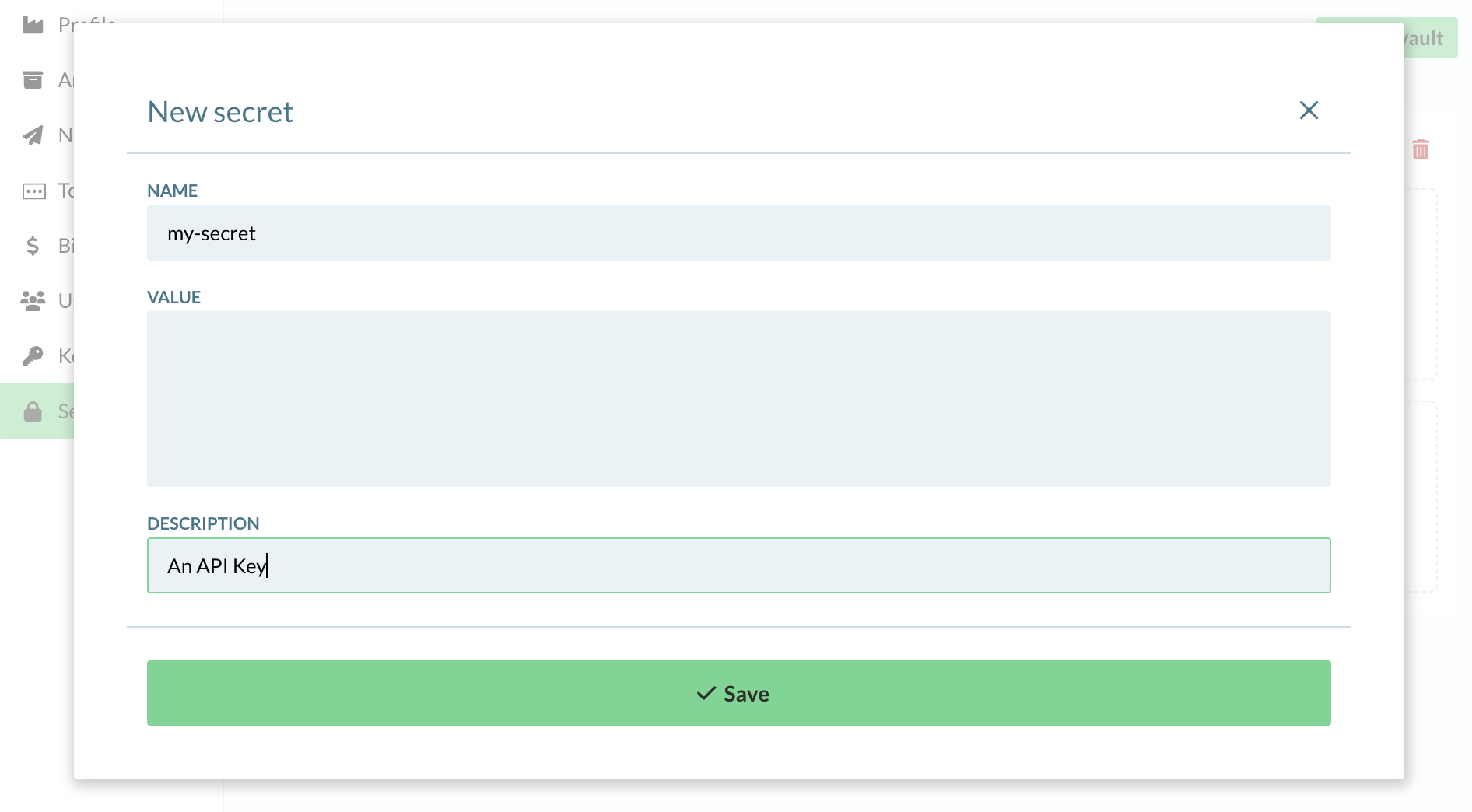
After the secret has been created, you can update the secret to a new value or delete it.
Note that when a secret is updated, applications using it will start using this new value within 60 seconds.
Also note that your application will not deploy successfully if the application requests a secret that for some reason is not available, by either not being defined or does not have access to it.
Example: Using an OpenAI API key for RAG
Set up a RAG search chain that uses an OpenAI API key as secret:
<services version="1.0" xmlns:deploy="vespa" xmlns:preprocess="properties">
    <container id="default" version="1.0">

        <!-- configure the OpenAI API key secret -->
        <secrets>
            <apiKey vault="my-vault" name="openai-api-key" />
        </secrets>

        <!-- configure the OpenAI client to use the secret -->
        <component id="openai" class="ai.vespa.llm.clients.OpenAI">
            <config name="ai.vespa.llm.clients.llm-client">
                <apiKeySecretRef>apiKey</apiKeySecretRef>
            </config>
        </component>

        <!-- configure a search chain to use the OpenAI client -->
        <search>
            <chain id="rag" inherits="vespa">
                <searcher id="ai.vespa.search.llm.RAGSearcher">
                    <config name="ai.vespa.search.llm.llm-searcher">
                        <providerId>openai</providerId>
                    </config>
                </searcher>
            </chain>
        </search>

    </container>
</services>
Try Retrieval Augmented Generation (RAG) in Vespa for a practical example.
Using secrets
To use the secret in an application, add secrets to services.xml:
<services version="1.0" xmlns:deploy="vespa" xmlns:preprocess="properties">
    <container id="default" version="1.0">

        <secrets>
            <myApiKey vault="my-vault" name="my-api-key" />
        </secrets>

    </container>
</services>
In this example, we refer to a secret named my-api-key in the vault
my-vault with the name myApiKey in the application.
To access this secret in a custom component, inject the Secrets as a
constructor parameter in the component, like a Searcher:
import ai.vespa.secret.Secret;
import ai.vespa.secret.Secrets;
...

public class MySearcher extends Searcher {

    private final Secret apiKeySecret;

    public MySearcher(Secrets secrets) {
        apiKeySecret = secrets.get("myApiKey");
    }

    @Override
    public Result search(Query query, Execution execution) {
        String apiKey = apiKeySecret.current();
        // ... do something with the current value of secret ...
        return execution.search(query);
    }

}
Typically, store the Secret in your class, and when you want to use the
secret value itself, you call Secret.current();. This ensures that you will
use the current secret value if it is updated. Note that it can take up to 60
seconds for the current secret value to be updated for your container code.
Ensure that you do not store the current value itself -
then the secret value will not be updated when the configuration is changed.